User Guide

New Customers

The steps to create an account have been updated. Follow these steps to register and start placing backorders.

1
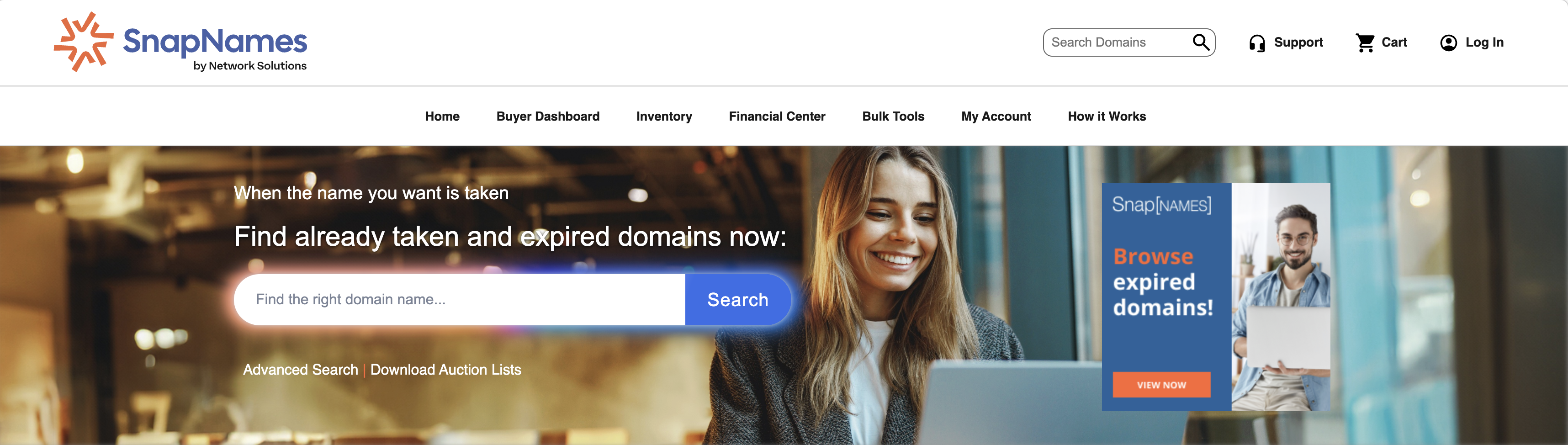
Click "Log In" on the SnapNames homepageThe link is in the top-right corner of every page.
2
Click "New Customer? Start Here"You'll be taken to the New Account page.
3
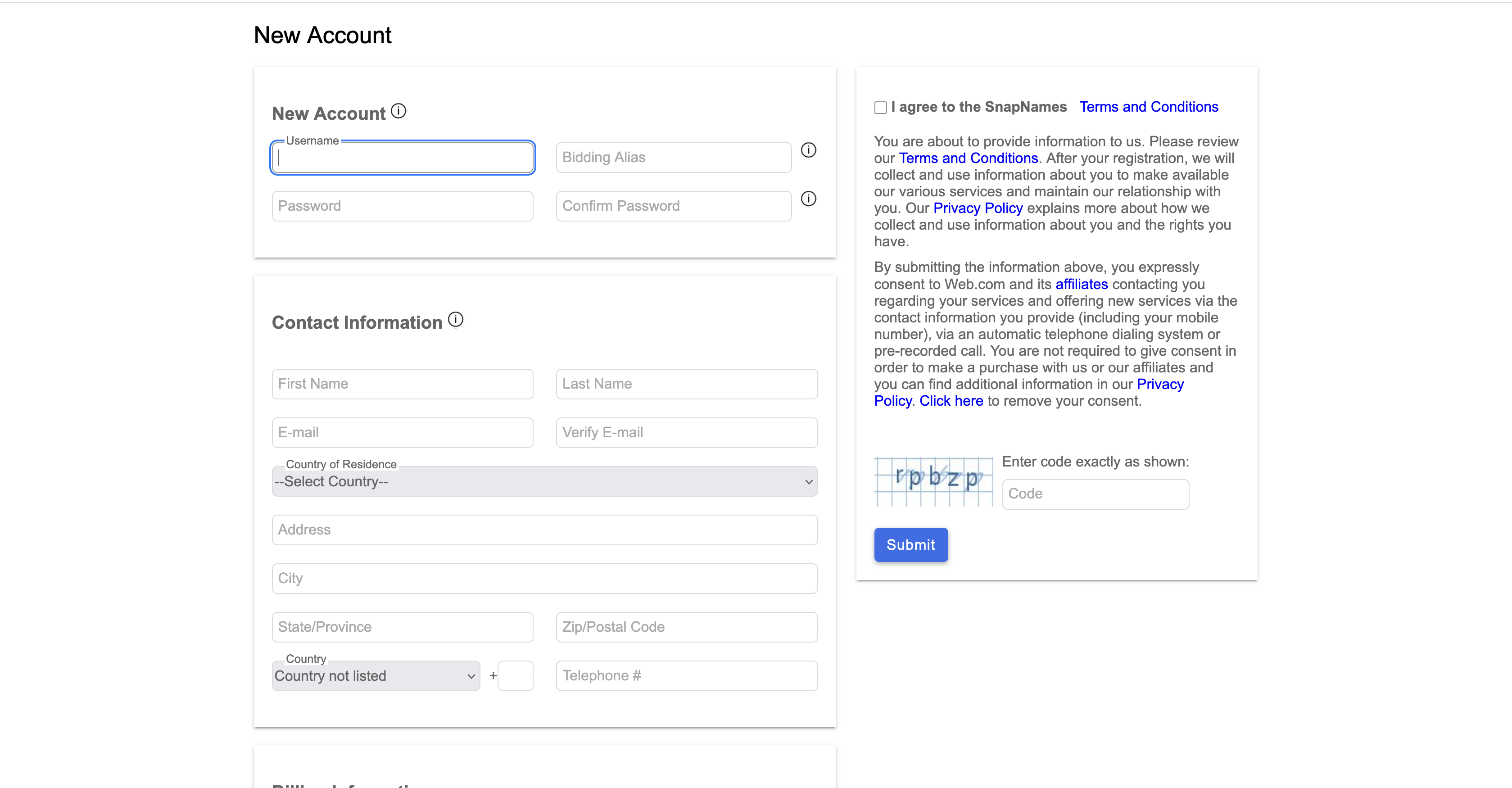
Complete the New Account form
  • aFill in all required fields
  • bAgree to the Terms of Service
  • cComplete the CAPTCHA
  • dClick Submit
⚠️
Credit card required. A valid card must be on file before any domain purchase or auction win can be processed.
ℹ️
New accounts can immediately place backorders and join auctions in unverified status. Full bidding access requires completing verification — see the next section.
SnapNames

SnapNames homepage — click "Sign In" in the top-right corner
SnapNames

New Account form — fill in Account Preferences, Contact Information, and Billing Information

Unverified (default)
  • Limited backorder count
  • Restricted auction participation
  • Bid amount cap applies
How to get verified
1
Visit the Verified Bidder pageSnapNames account_become_verified
2
Download and complete the Verified Bidder application
3
Submit via a support ticketSend the completed form to SnapNames.com/support
1
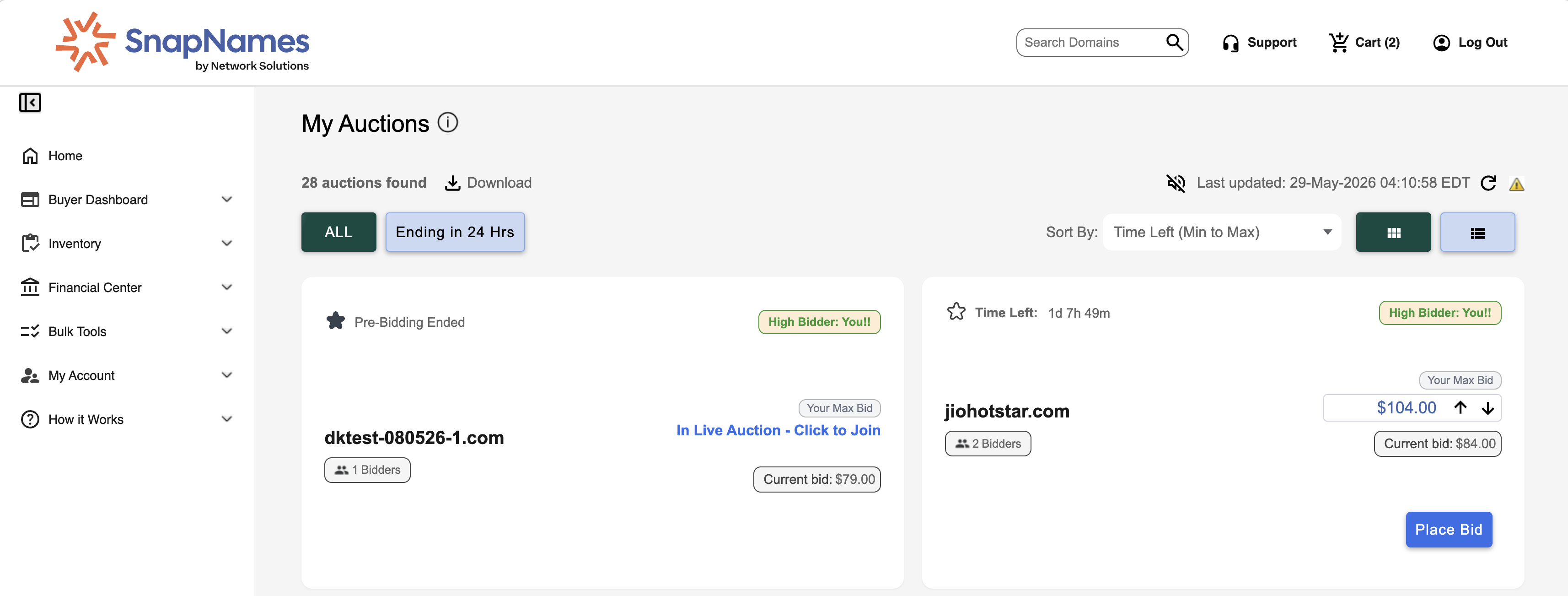
Go to My AuctionsHover over Buyer Dashboard in the nav, then click My Auctions.
What you can do from My Auctions
Adjust bids

Raise or lower your maximum bid on any active auction.

Place a bid

Bid directly inside any auction you're participating in.

Export list

Download a CSV of all your current auction participation.

Filter by end date

Show only auctions closing today.

SnapNames

My Auctions — manage bids, download your auction list, and filter by end date

After winning a domain, it transfers via the partner registrar. Your registrant (WHOIS) information must stay accurate at all times.

1
Log into your SnapNames account
2
Hover over "My Account" click "Pre-Registration Info"
3
Review and update your registrant detailsThis info is sent to registrars for every domain you purchase.
⚠️
Accuracy is required. Fake or unverifiable info can result in account suspension and forfeiture of purchased domains.

For select partner registrars, linking your account ensures won domains automatically fulfill to your registrar.

1
Log into your SnapNames account
2
Navigate to Auction Profile
3
Scroll to the bottom of the pageThe registrar linking option appears at the bottom of Auction Profile.
4
Click "Link Partner Registrar Account"
5
Follow the on-screen prompts to complete
SnapNames

Linked Partner Registrar Accounts section in Account Information

1
Log into your account
2
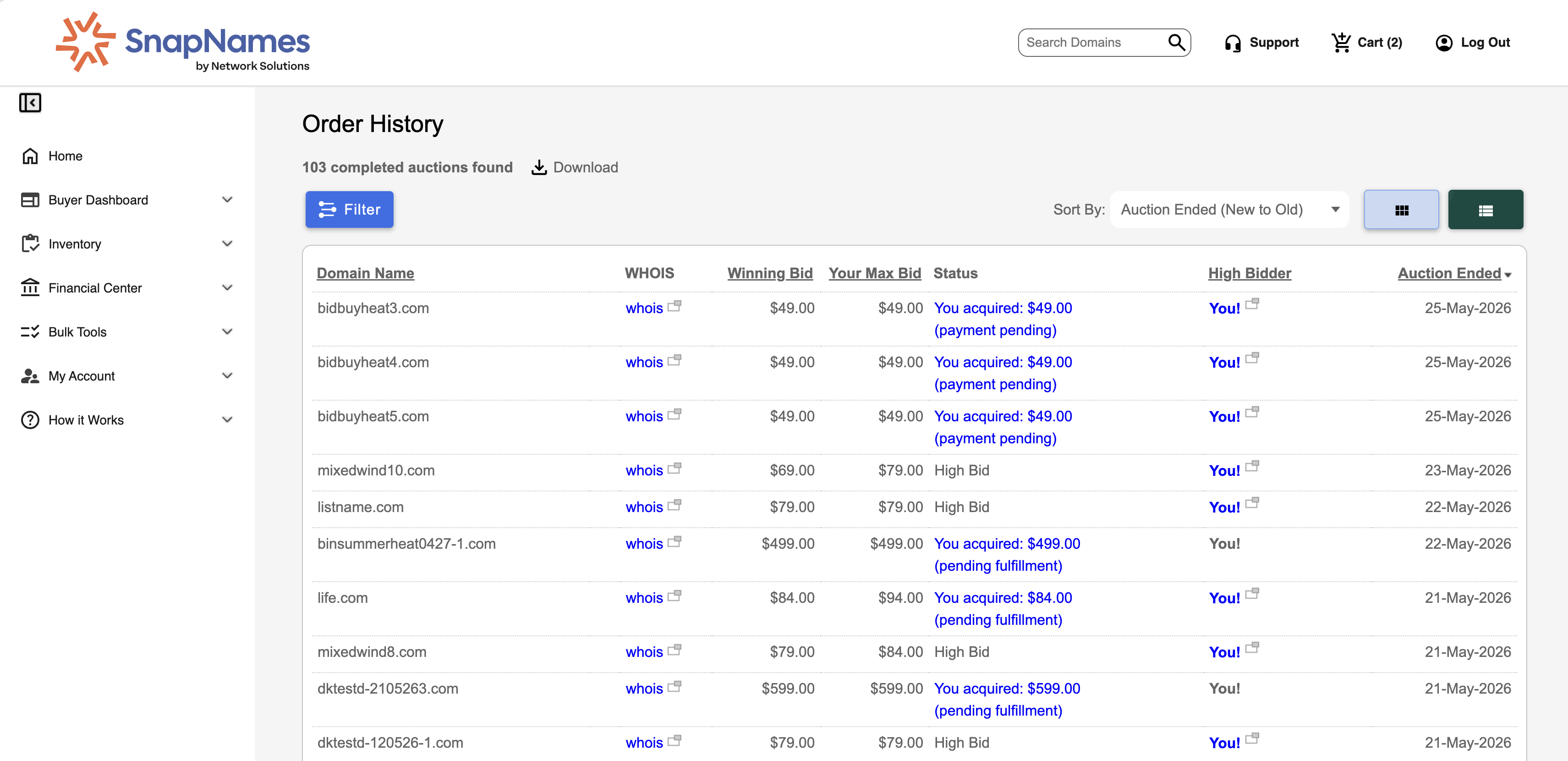
Financial Center Order History
3
Filter by date range using the dropdown
  • ·Current month
  • ·Previous month
  • ·Year to date
  • ·Last year
  • ·All
  • ·Custom — set your own From / To dates
SnapNames

Order History — filter by date range to view your complete bid history
US Only
1
Log into your account
2
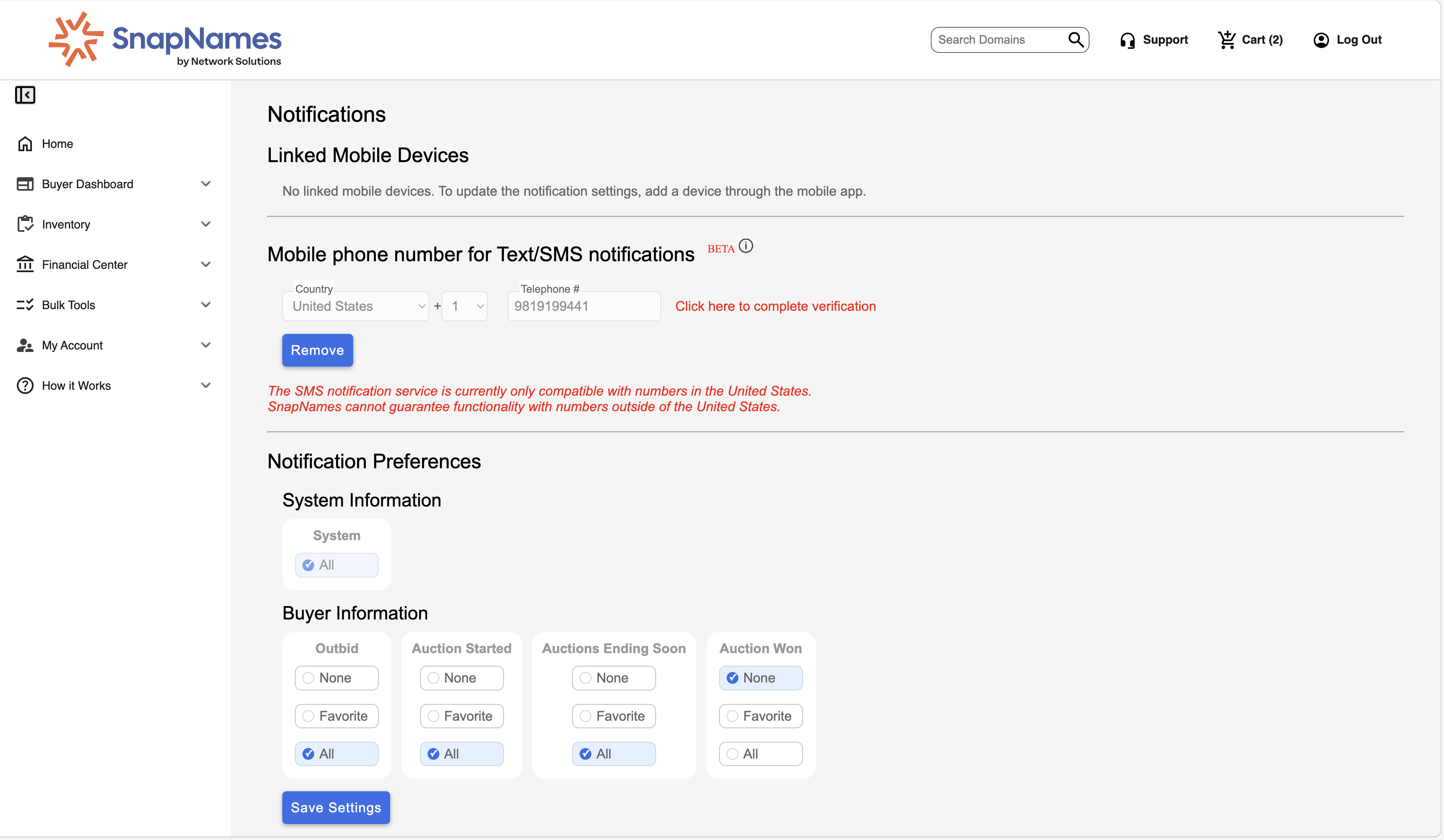
My Account Notifications
3
Enter your mobile number and security code, then click Save
4
Select which notifications to receiveOutbid · Auction Started · Auctions Ending Soon · Auction Won
5
Click Save Settings
ℹ️
SMS is only compatible with US phone numbers. Functionality with international numbers cannot be guaranteed.
SnapNames

Notifications page — enter your US mobile number, complete verification, and select alert types
1
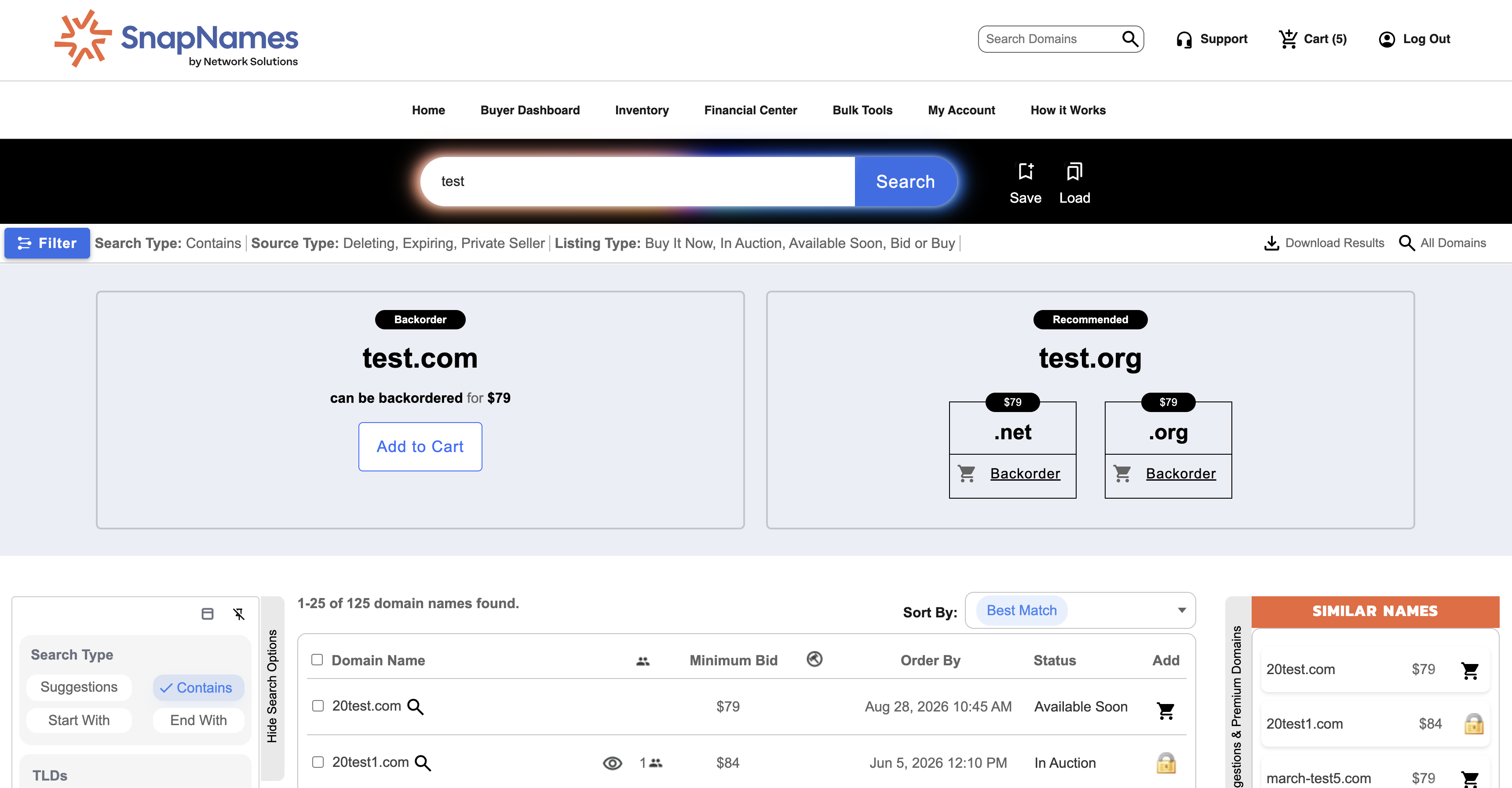
Search for a domainResults show domain info and available actions.
2
Add to cartClick the Backorder button, or check the checkbox and click Add to Cart. Use Advanced Search to select multiple domains at once.
3
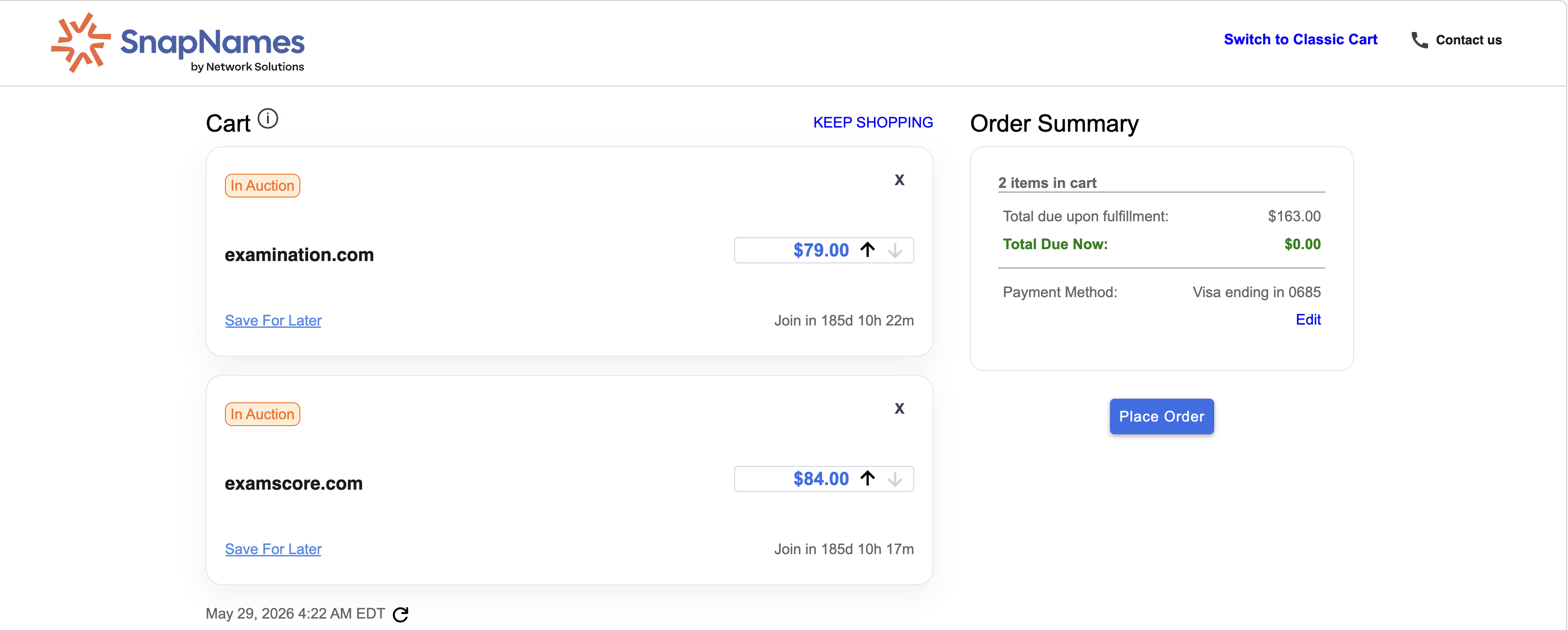
Review your Shopping CartClick the Cart icon to remove items or adjust bid amounts before finalizing.
4
Click "Place Order" to finalize
5
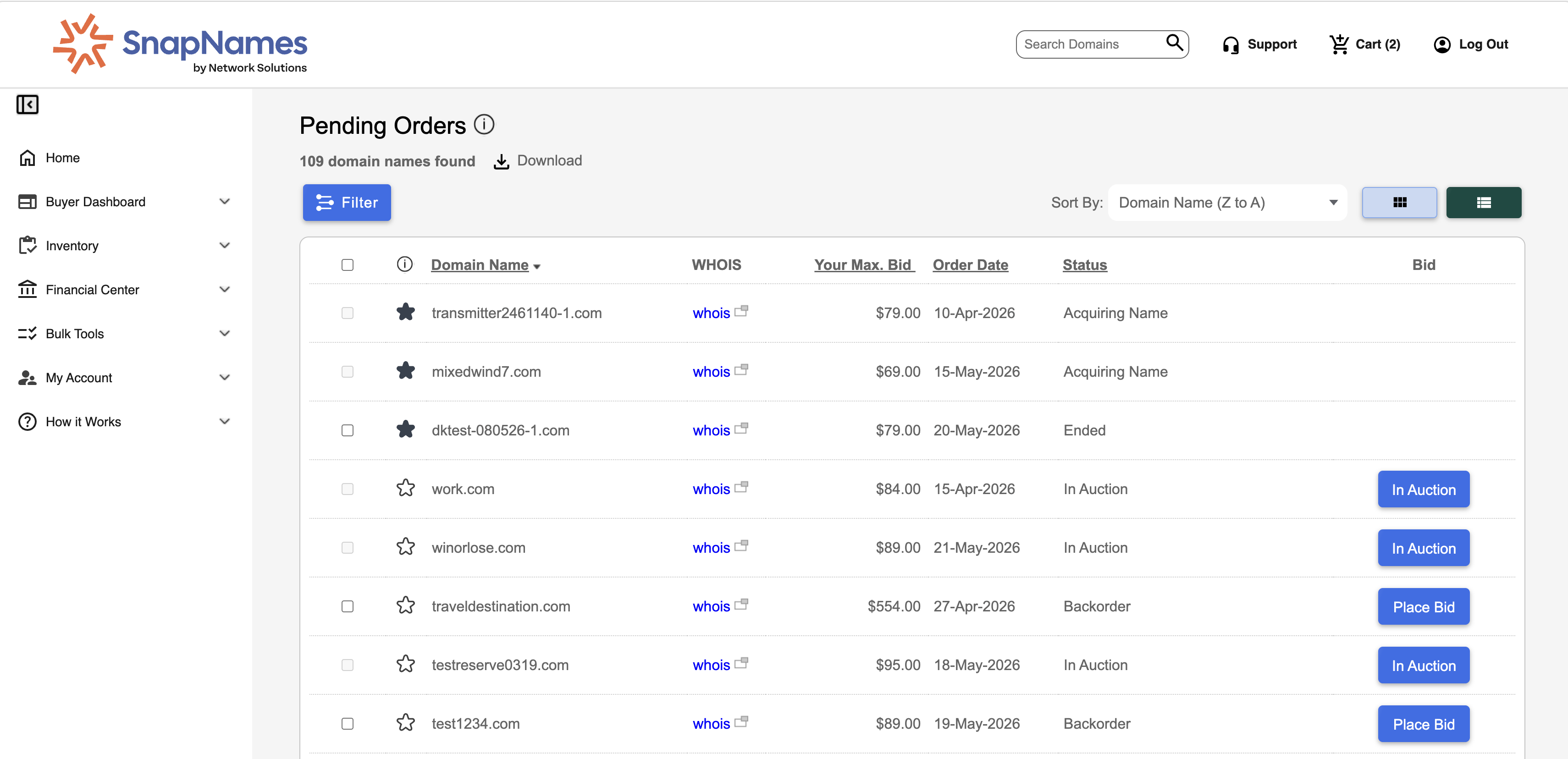
Track orders at Buyer Dashboard Pending Orders
SnapNames

Advanced Search — filter by TLD, category, source, listing type, and more to find backorder targets
SnapNames

Shopping Cart — review your backorders and adjust maximum bids before placing your order
SnapNames

Pending Orders — track all active backorders before acquisition

Up to 500 domains

All bulk tools live under Bulk Tools in the nav. Separate multiple domains with a space or comma. Maximum 500 per submission.

Bulk Backorders
1
Bulk Tools Bulk Order
2
Enter domains and bidsFormat: Domain1.com:100, Domain2.com:200
3
Click Submit
Bulk Bids — update bids on existing orders
1
Bulk Tools Bulk Bid
2
Enter domains and new bid amountsFormat: Domain1.com:150
3
Click Submit
Bulk Deletes — remove multiple orders
1
Bulk Tools Bulk Delete
2
Enter domain names to remove
3
Click Submit
Bulk Set Favorites
1
Bulk Tools Bulk Set Favorite
2
Enter domain and actionFormat: Domain1.com:mark or Domain2.com:remove
3
Click Submit

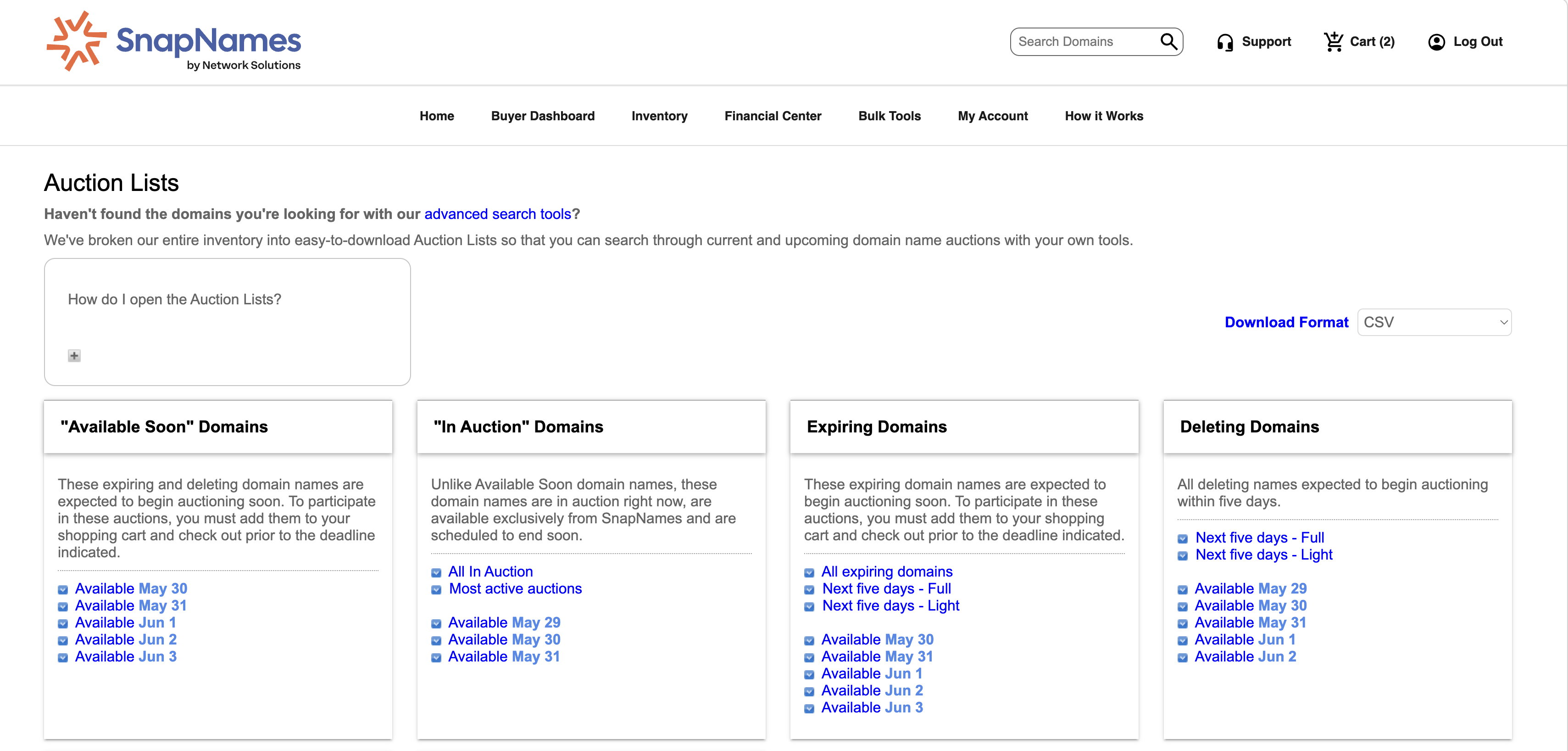
Go to Inventory Download Auction Lists to download current and upcoming domain lists.

Available list types
Available Soon

Expiring and deleting domains expected to enter auction shortly.

In Auction

Domains currently in an active SnapNames auction.

Expiring Domains

Expiring domains about to begin auctioning.

Deleting Domains

Entering auction within the next 5 days.

Top Registrar

Expiring from top partner registrars within 5 days.

Top Categories

Hottest domains across finance, education, sports.

Exclusive Web

Domains for sale exclusively through Web.

Premium Partner

Domains for sale from our premium partners.

Download formats
Scope

Specific date · All domains · Next 5 days · Full or Light dataset

Format

CSV — opens in Excel or any spreadsheet.
Compressed text — open in any text editor.
SnapNames

Auction Lists download page — choose list type, date scope, and format (CSV or compressed text)

Basic search

Type a domain in the header search field and click the magnifying glass. Results show live status and let you backorder, bid, or buy now.

Advanced search
1
Click the magnifying glass in the header
2
Click the horizontal bar to reveal filtersSet your criteria and click Search. Hit Reset to clear all filters.
Saved searches
1
Run a basic or advanced search
2
Click the Save icon and name your search
3
Reload anytime via the Load icon select from dropdownTo delete: load the search click Load icon again click Delete.
Expiry

Domains acquired through Priority Partner registrars after expiry and the 30-45 day Grace Period. SnapNames can offer names before the Renewal Grace Period ends.

Deadline: Backorders must be placed no later than 9 PM PT the night before the release date on the website.
Pending Delete

When the Redemption Grace Period ends, the domain enters Pending Delete while the registry processes deletion — approximately 6 days before the name becomes available.

Deadline: Backorders must be placed no later than 10:45 AM PT on the release date.
Exclusive

Domains available only on the SnapNames platform.

Buy It Now

Fixed-price domains. Instant purchase, no bidding needed.

Go to Financial Center Payment Center and click Add Funds Now.

Under $50,000

Credit Card, PayPal, Domestic ACH, Domestic Wire, or International Wire.
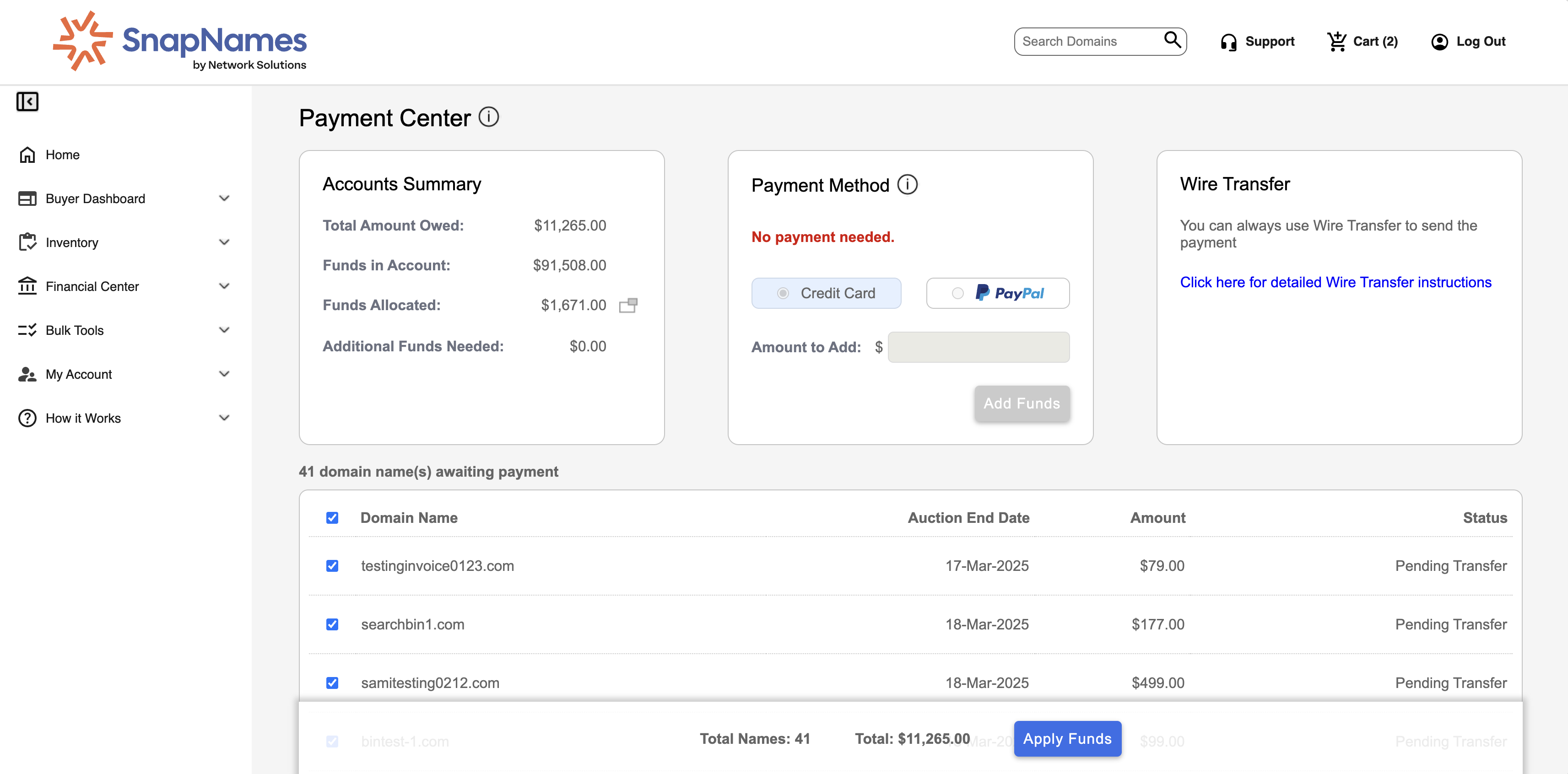
$50,000 or more — required

Bank-to-bank direct transfer only: ACH, Domestic Wire, or International Wire.

ℹ️
For wire or ACH transfers, notify SnapNames at [email protected] before initiating the transfer.
SnapNames

Payment Center — view outstanding balances and navigate to Add Funds

SnapNames

Add Funds — credit card / PayPal under $50K; wire transfer for larger amounts. Wire instructions shown.

1
Log into your account
2
Click Support in the headerOpens the Help Center.
3
Click "Create New Ticket", fill out the form, and submitYour ticket appears in the support list immediately for tracking.
4
Track your ticketClick See Details to view the full thread. Sort or search tickets by any column.
ℹ️
Prefer to call? 1-877-352-5630, Monday through Friday.
9:00am to 6:00pm US Eastern Standard Time
SnapNames

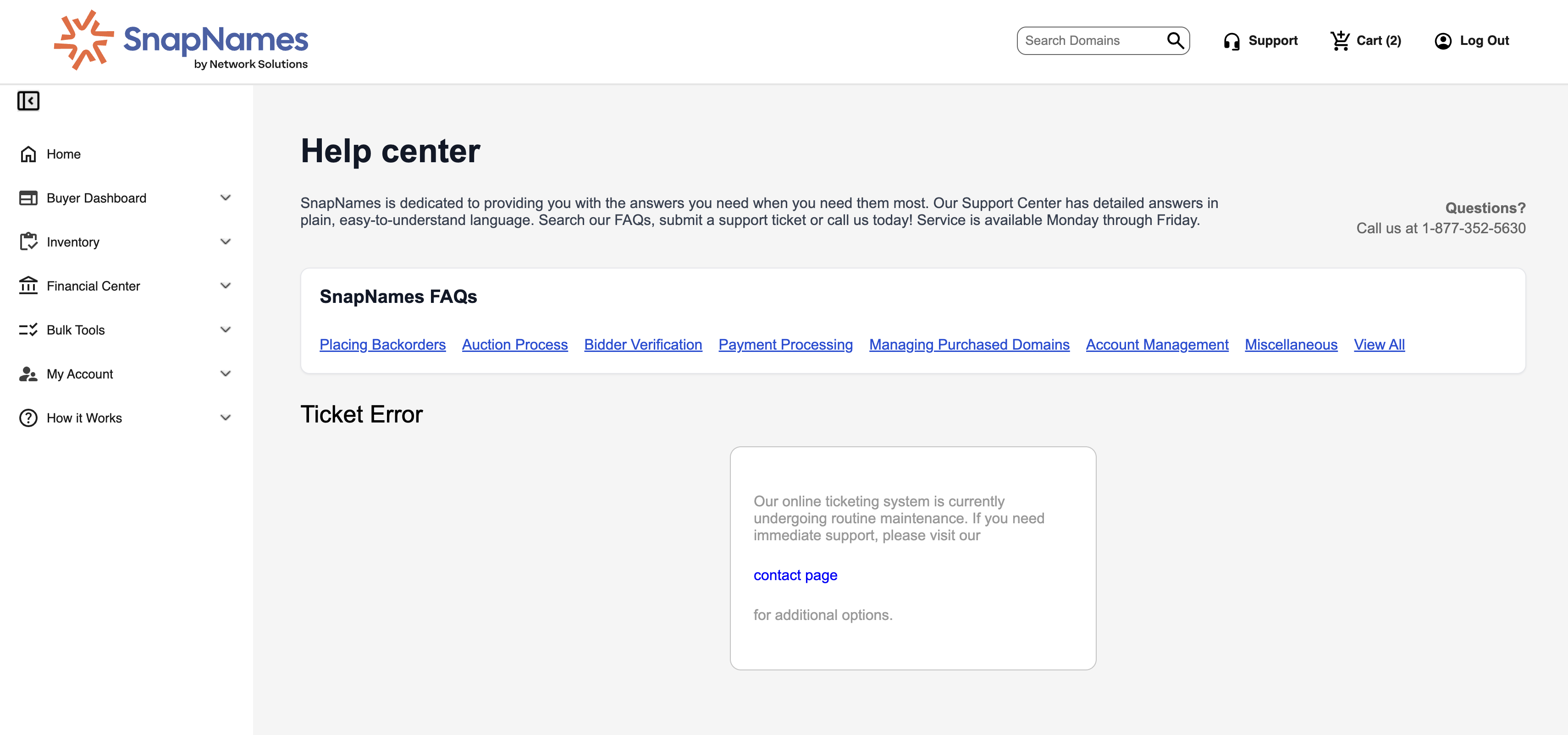
Help Center — browse FAQs, create support tickets, and track their status